Imagine you're moving to a new apartment. You could pack everything loosely in boxes, hoping nothing breaks and that you remember what goes where. Or you could pack each room's items in labeled, self-contained units that include everything needed for that space. Docker containers work the same way for software—they bundle an application with everything it needs to run, making it portable and predictable no matter where it goes.
If you've heard developers rave about Docker but aren't sure what the fuss is about, this guide will break down containerization in plain English. We'll explore what Docker containers actually are, how they differ from traditional virtual machines, and why they've become essential tools for building modern applications.
What Are Docker Containers?
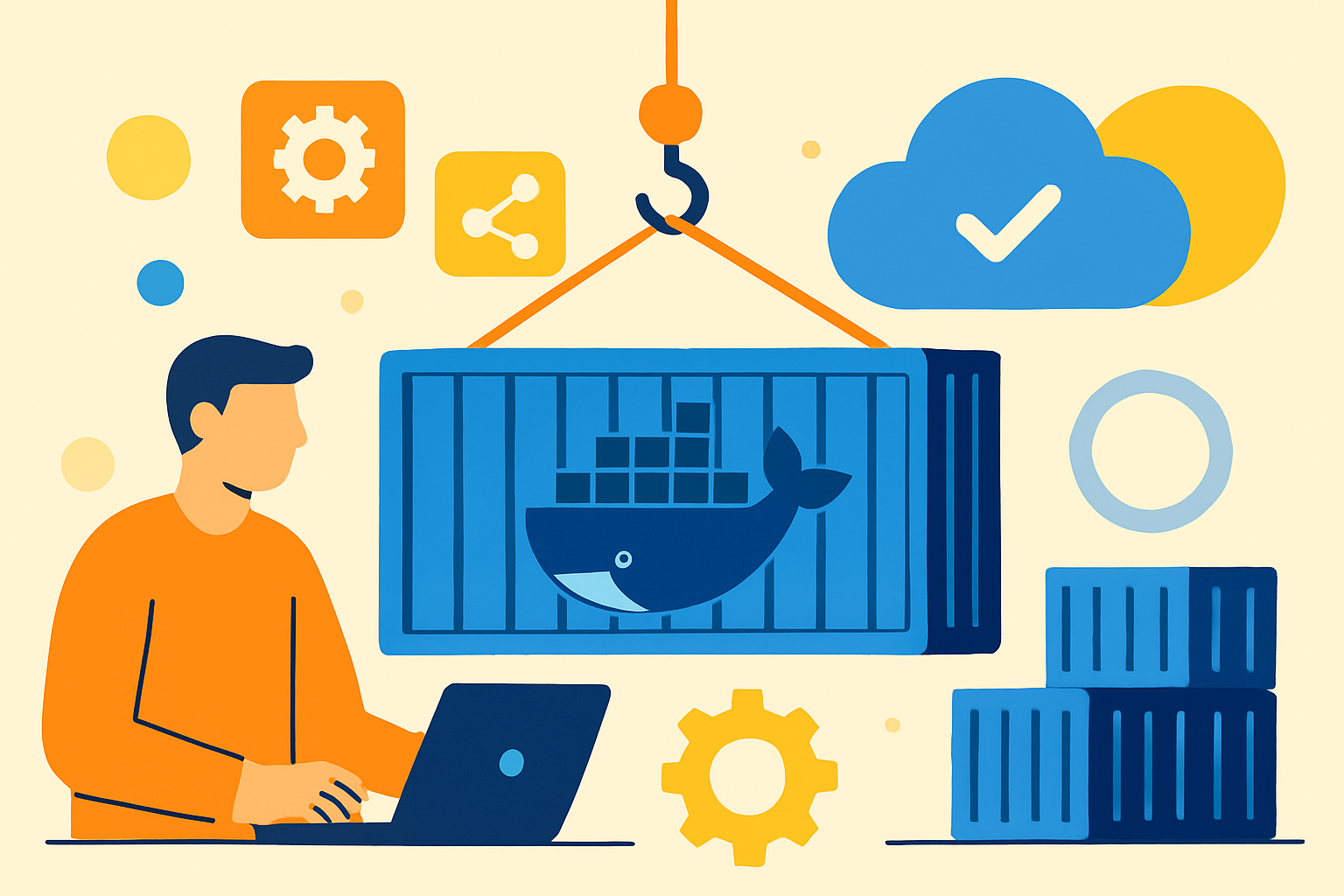
A Docker container is a lightweight, standalone package that contains everything an application needs to run: the code, runtime environment, system tools, libraries, and settings. Think of it as a shipping container for software—just like physical shipping containers revolutionized global trade by standardizing how goods are transported, Docker containers standardize how applications are packaged and deployed.
Here's what makes containers special:
When you run a container, it starts up in seconds and uses minimal resources while keeping your application isolated from everything else on the system.
Containers vs. Virtual Machines: What's the Difference?
This is the question everyone asks first. Both containers and virtual machines (VMs) help you run applications in isolated environments, but they work very differently.
Virtual Machines: The Heavy Approach
A virtual machine emulates an entire computer. When you run a VM, you're running a complete operating system on top of your host operating system. Each VM includes:
This means if you run three VMs, you're essentially running three complete computers on one physical machine. Each VM can be several gigabytes in size and takes minutes to boot up.
Containers: The Lightweight Approach
Containers take a different approach. Instead of virtualizing the entire machine, they virtualize the operating system. Multiple containers share the same OS kernel but run in isolated user spaces.
Here's a comparison table:
| Feature | Virtual Machines | Docker Containers |
|---|---|---|
| Size* | Gigabytes | Megabytes |
| **Startup Time** | Minutes | Seconds |
| **Resource Usage** | Heavy | Lightweight |
| **Isolation** | Complete (separate OS) | Process-level |
| **Portability** | Less portable | Highly portable |
| *Performance | Slower (overhead from virtualization) | Near-native performance |
Think of it this way: VMs are like separate houses, each with its own foundation, walls, and utilities. Containers are like apartments in a building—they share the building's foundation and utilities but each unit is separate and self-contained.
How Docker Containers Work
Understanding Docker requires knowing three core concepts: images, containers, and the Docker Engine.
Docker Images
A Docker image is the blueprint for a container. It's a read-only template that contains instructions for creating a container. Images are built in layers, with each layer representing a change or addition to the filesystem.
For example, a basic web application image might have these layers:
These layers are stacked on top of each other, and Docker is smart about reusing layers. If ten different images all start with the same Ubuntu base layer, Docker only stores that layer once.
Docker Containers
A container is a running instance of an image. You can create multiple containers from the same image, just like you can bake multiple cakes from the same recipe. Each container runs independently with its own filesystem, network, and process space.
When you start a container, Docker adds a thin writable layer on top of the read-only image layers. Any changes the container makes are written to this layer, leaving the original image unchanged.
Docker Engine
The Docker Engine is the runtime that builds and runs your containers. It consists of:
Working with Docker: Basic Commands
Let's look at some practical Docker commands you'll use regularly. Don't worry if you're not ready to run these yet—just seeing them helps understand the workflow.
Pulling an Image
Images are stored in registries like Docker Hub. To download an image:
bash
docker pull nginx
This downloads the official Nginx web server image to your local machine.
Running a Container
To create and start a container from an image:
bash
docker run -d -p 8080:80 --name my-web-server nginx
Let's break down what this command does:
docker run: Creates and starts a new container-d: Runs the container in detached mode (in the background)-p 8080:80: Maps port 8080 on your machine to port 80 in the container--name my-web-server: Gives the container a friendly namenginx: The image to useAfter running this, you'd have an Nginx web server running at localhost:8080.
Listing Containers
To see running containers:
bash
docker ps
To see all containers (including stopped ones):
bash
docker ps -a
Stopping and Starting Containers
bash
docker stop my-web-server
docker start my-web-server
Removing Containers
bash
docker rm my-web-server
Why Developers Love Docker
Docker has become incredibly popular for several compelling reasons:
Consistency Across Environments
"It works on my machine" is a developer's most dreaded phrase. Docker eliminates this problem. When an application runs in a container, it brings its entire environment with it. The container that runs on your laptop will run identically on a staging server or in production.
Simplified Dependency Management
Instead of installing different versions of Python, Node.js, databases, and other tools on your system (and dealing with conflicts), each application gets its own container with exactly the dependencies it needs. No more version conflicts or complicated installation procedures.
Easy Scaling
Need to handle more traffic? Spin up more containers. Cloud platforms and orchestration tools like Kubernetes make it trivial to run hundreds or thousands of identical containers, distributing load across them.
Faster Development and Deployment
Containers start in seconds, making development cycles faster. You can quickly test changes, tear down environments, and rebuild them. Deploying to production is as simple as pulling an image and starting a container—no complex installation scripts.
Microservices Architecture
Docker is perfect for microservices, where applications are built as a collection of small, independent services. Each service runs in its own container, making it easy to update, scale, or replace individual components without affecting the entire application.
Creating Your Own Docker Image
While using pre-built images is convenient, you'll often need to create custom images. This is done with a Dockerfile—a text file containing instructions for building an image.
Here's a simple example for a Node.js application:
dockerfile
Start with a Node.js base image
FROM node:18-alpineSet the working directory in the container
WORKDIR /appCopy package files
COPY package*.json ./Install dependencies
RUN npm installCopy application code
COPY . .Expose the port the app runs on
EXPOSE 3000Command to run the application
CMD ["node", "server.js"]
To build this image:
bash
docker build -t my-node-app .
Then run it:
bash
docker run -p 3000:3000 my-node-app
Common Use Cases for Docker
Docker isn't just for developers. Here are practical scenarios where containers shine:
Running Multiple Applications Safely
Want to run a media server, download client, and automation tools on the same machine without them interfering with each other? Containers provide the isolation you need.
Testing Software
Need to test an application on different operating systems or with different dependency versions? Spin up containers for each scenario without affecting your main system.
Development Environments
Onboard new team members instantly by giving them a Docker Compose file that sets up their entire development environment with one command.
Legacy Application Support
Need to run an old application that requires outdated dependencies? Put it in a container with the exact environment it needs, isolated from your modern system.
Docker Compose: Managing Multiple Containers
Real-world applications often need multiple containers working together—a web server, database, cache, and background workers, for example. Docker Compose lets you define and run multi-container applications using a YAML file.
Here's a simple example:
yaml
version: '3'
services:
  web:
    image: nginx
    ports:
      - "8080:80"  database:
    image: postgres
    environment:
      POSTGRES_PASSWORD: example
Start everything with one command:
bash
docker-compose up
Getting Started with Docker
Ready to try Docker yourself? Here's how to begin:
docker --version to confirm it's workingdocker run hello-world to see Docker in actionStart simple—run a few pre-built containers to get comfortable with the basics before diving into creating your own images.
Wrapping Up
Docker containers have transformed how we build, ship, and run software. By packaging applications with everything they need in lightweight, portable units, containers solve age-old problems of consistency, dependency management, and deployment complexity.
Whether you're a developer building microservices, a student learning new technologies, or someone running applications on a home server, understanding containers opens up new possibilities. The beauty of Docker is that you don't need to understand every technical detail to benefit from it—you can start simple and gradually explore more advanced features.
If you're interested in self-hosting applications without the complexity of managing Docker and infrastructure yourself, platforms like SonicBit handle the containerization behind the scenes. With one-click deployments for popular apps like Plex, Sonarr, qBittorrent, and more, you get all the benefits of containerized applications without needing to write Dockerfiles or manage container orchestration.
Sign up free at SonicBit.net and get 4GB storage. Download our app on Android and iOS to access your seedbox on the go.